Make narrated, animated explainer films in the chat or from your own code: ask a question, add images, screenshots and documents, choose the settings, then follow and change your film.
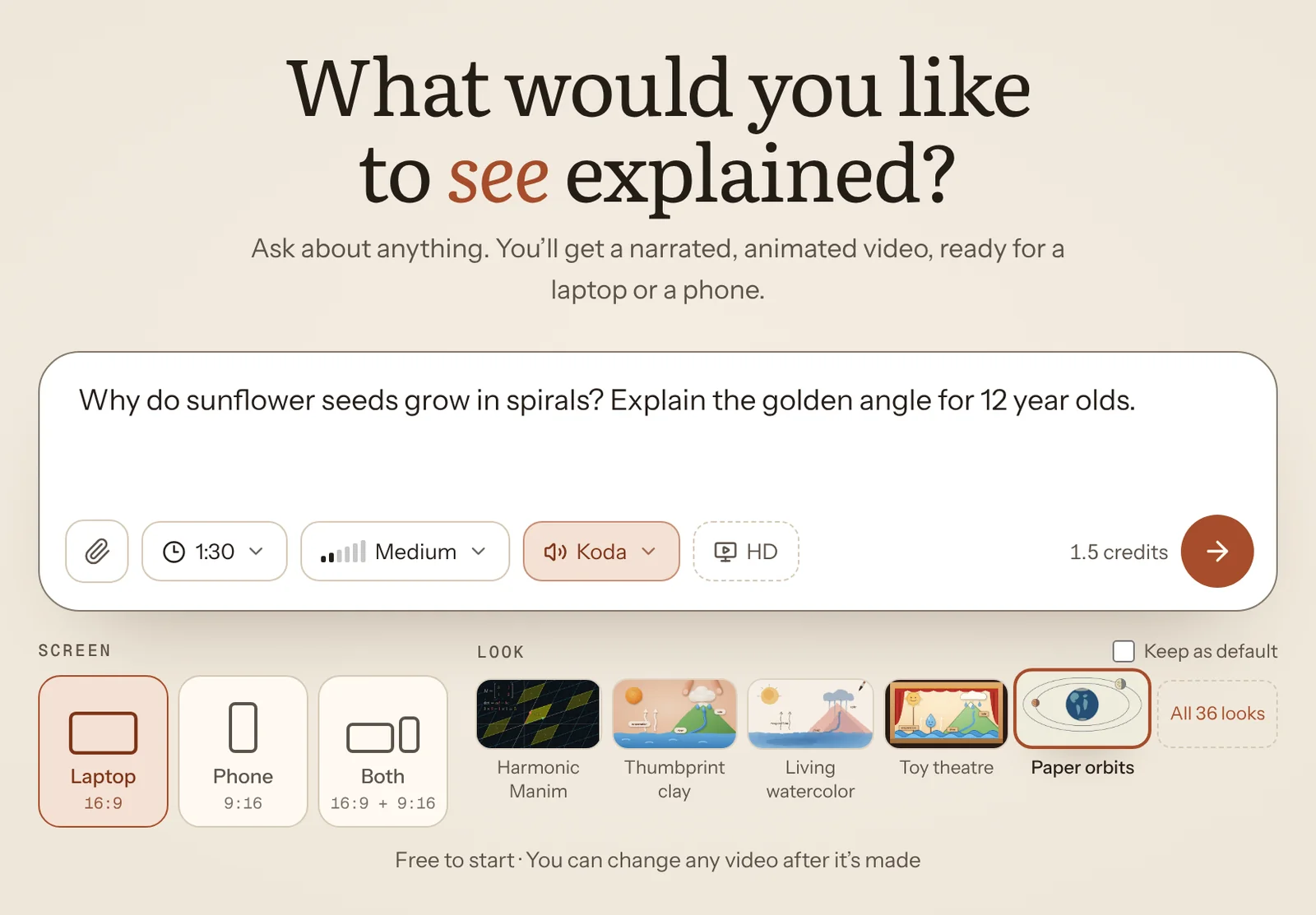
Everything happens in one box: write what you want explained, add your files, check the settings and send.
01Ask your question
Open the chat and write what the film should explain: a question, a topic or a lesson. Say who it is for and what matters most, such as the age of your students or the step that confuses them. Press the arrow to create the film. Its price in credits shows next to the arrow before you send.
One clear question makes a better film than a long list of topics.
Pick the screen under the box: Laptop 16:9, Phone 9:16 or Both.
02Add images, screenshots and documents
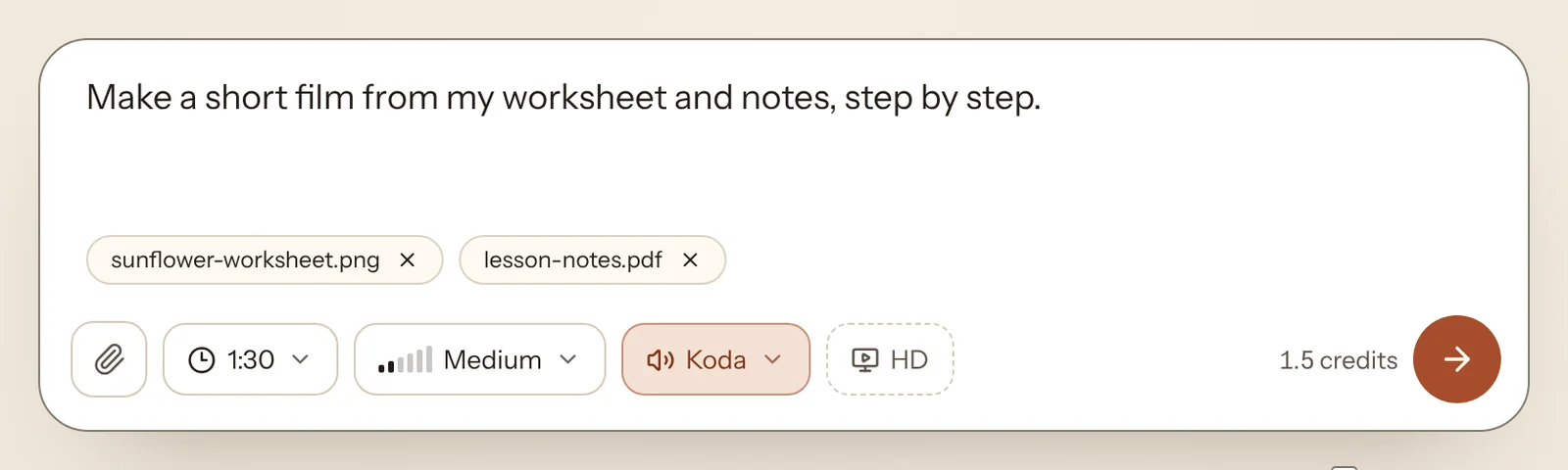
Click the paperclip to add images, PDFs, PowerPoint or Word files. You can also drag files onto the box, or copy a screenshot and paste it into the box with Ctrl+V (Cmd+V on a Mac). The film works from what they show: a diagram, an exercise, slides or your notes. You can even send files without any text.
Each file shows as a chip under your text. Click × to remove it.
A cropped screenshot of the part you mean works better than a whole page.
03Choose the length, effort, narrator and look
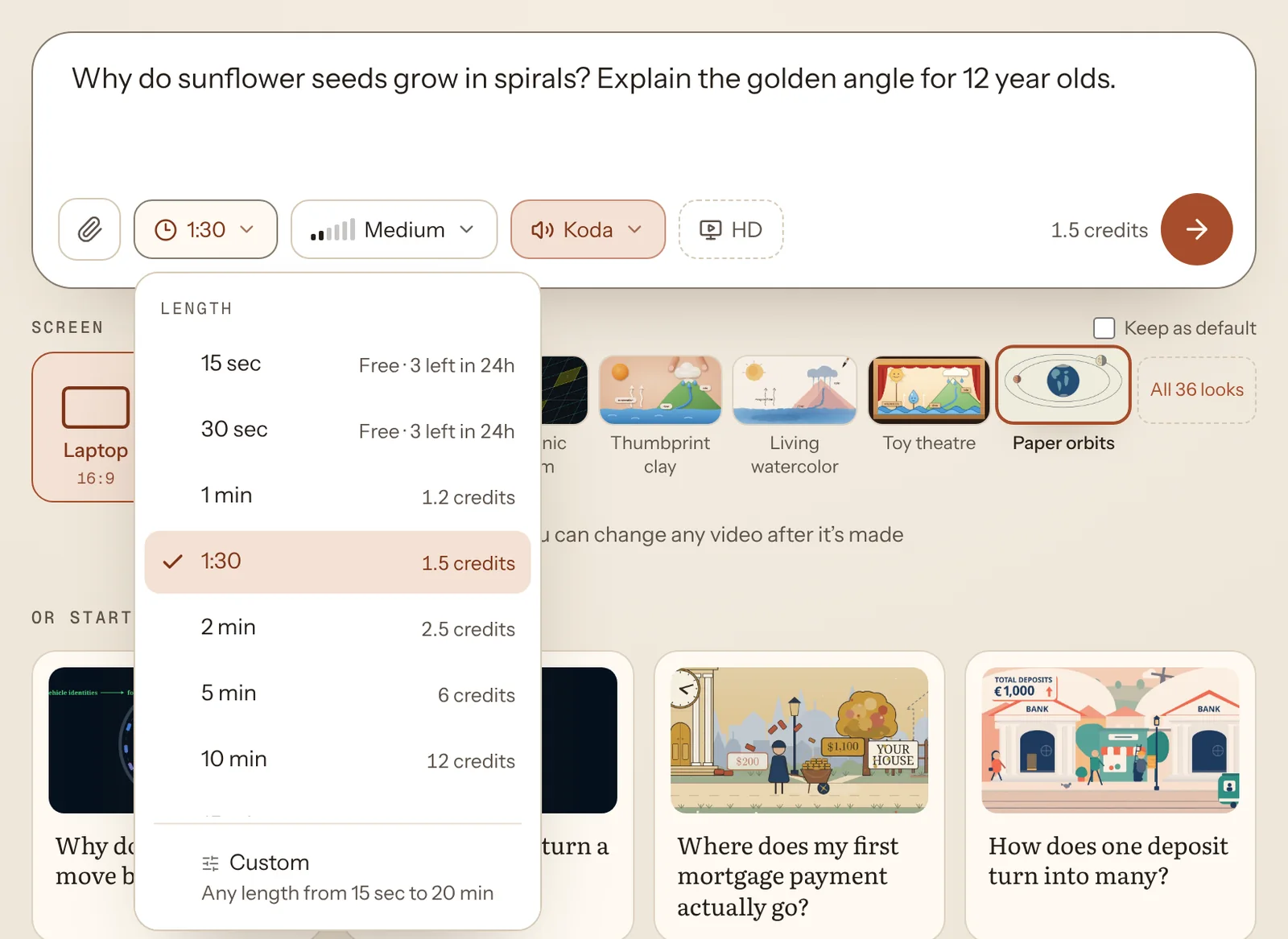
The buttons under the box set the film. Length runs from 15 seconds to 20 minutes. Effort sets how much care goes into each scene; more effort costs more. The voice button picks the narrator, HD makes the final film in 1080p, and the looks under the box set its style. The price changes as you choose.
Free accounts make 1:30 films in Paper orbits or Harmonic Manim.
Other lengths, efforts and looks come with a plan or 10 credits or more.
The phone format, other narrators and a custom length come with a plan or more than 6 credits.
Members on a paid plan get up to 3 free 15 or 30 second films a day (Low to High effort).
04Follow your film while it is made
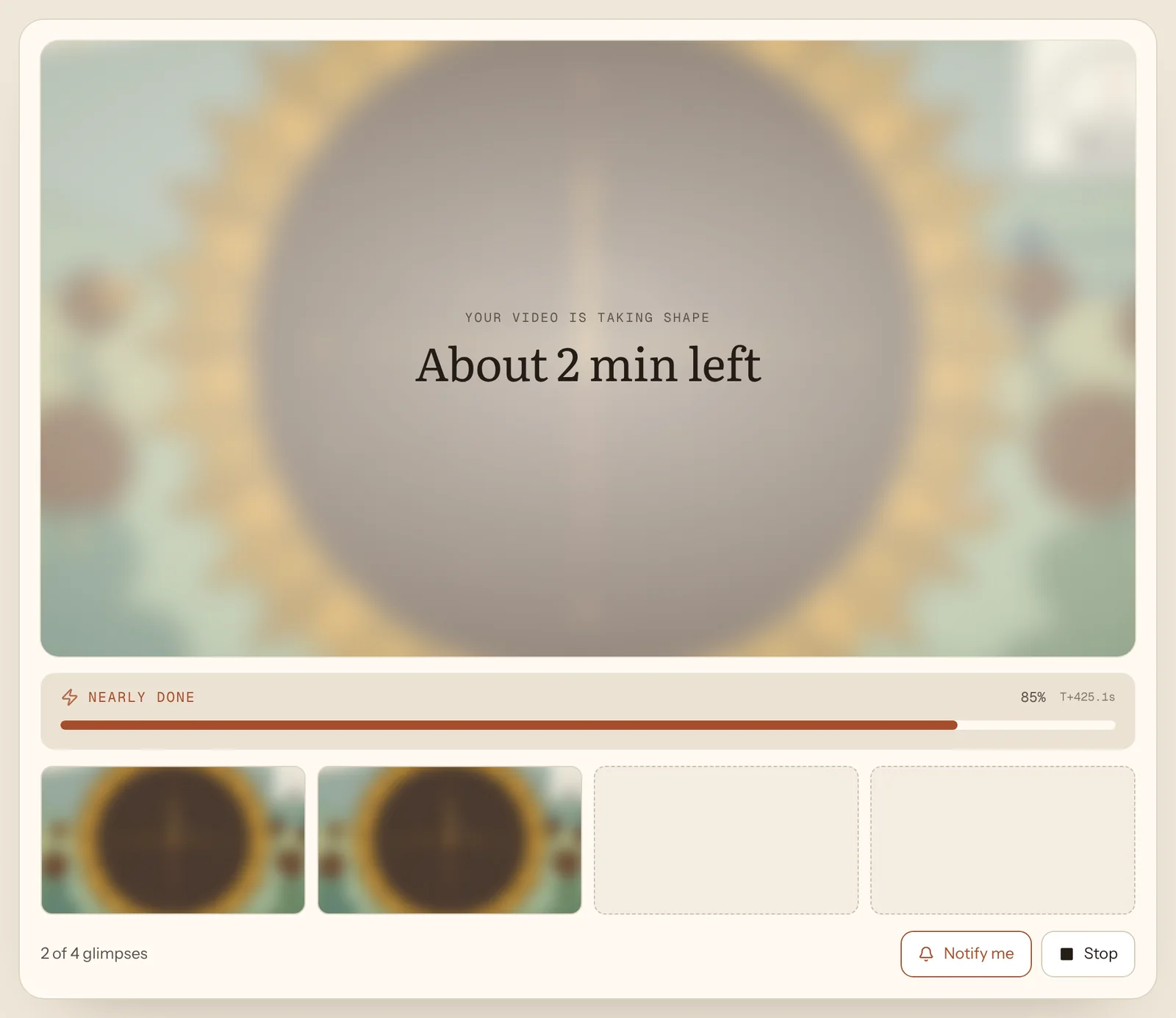
A film takes several minutes, longer for long films. A card shows how far it is, about how long is left, and glimpses of the scenes as they are drawn. You can close the page: the film keeps going. Press Notify me to be told when it is ready, or Stop to cancel it.
If a film fails or you stop it, its credits come back.
When many films are being made, yours waits in line and starts on its own.
05Watch, download and share
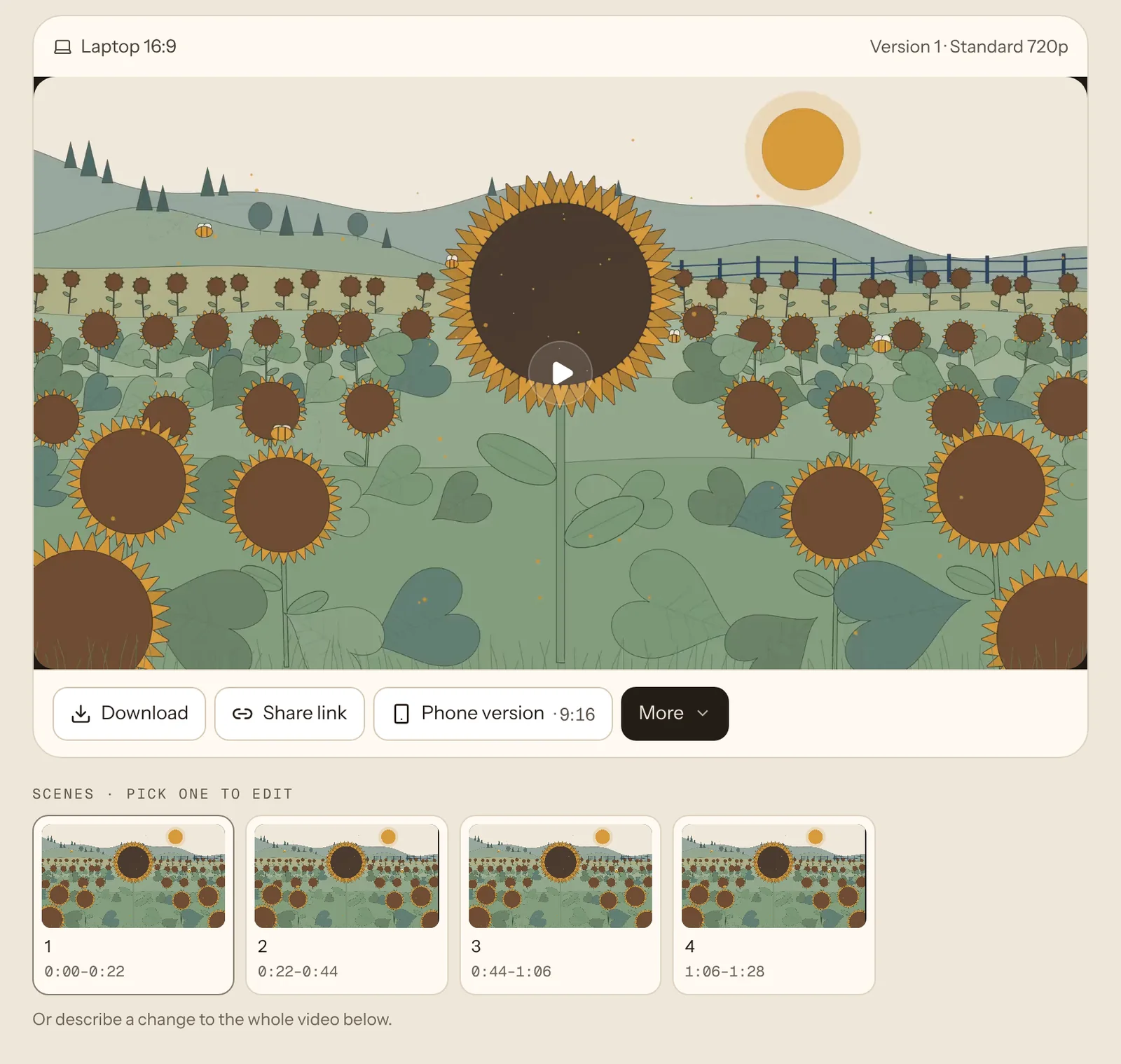
Your film appears in the chat with its scenes underneath. Download saves it, Share link copies a link to it, and Phone version makes a 9:16 copy for Shorts and Reels. More holds the rest, such as removing the watermark.
Downloads on the free plan carry the DeepManim logo. A plan or 5 credits lets you turn it off in Settings.
The Formats panel shows which versions of the film exist: laptop, phone and HD.
06Change the film
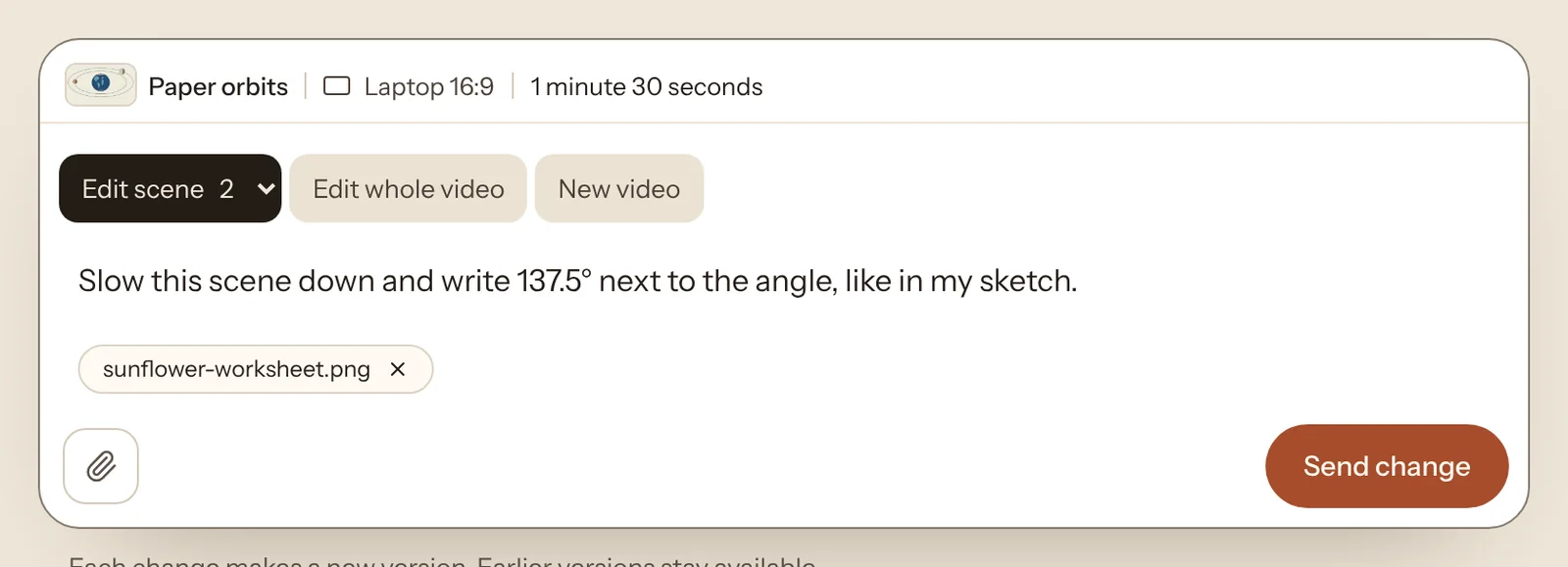
Once the film is ready, the box changes it instead of starting a new one. Edit whole video changes the whole film. Click a scene, or choose Edit scene and its number, to change only that scene. New video starts a new film in a new chat. Attach a screenshot or a sketch to show what you mean.
Each change makes a new version. Earlier versions stay in the Versions panel.
A change keeps the film's look, length and narrator.
The API makes the same films as the chat, with the same options and prices, from your own code. The steps below use curl. API docs
01Create an API key
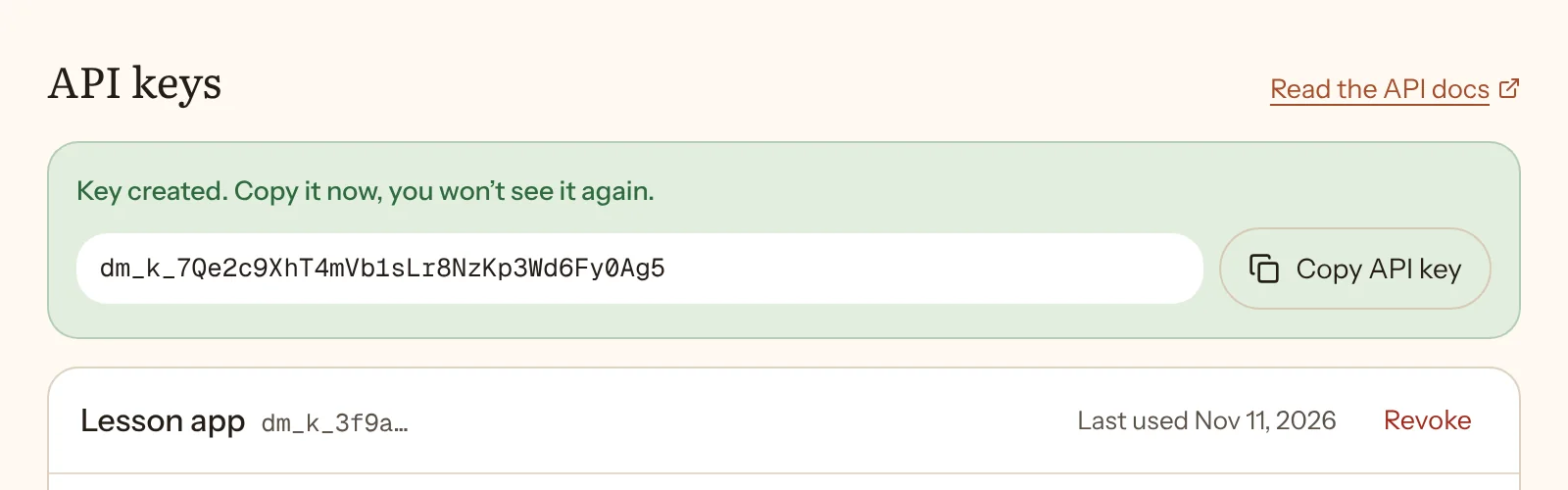
In the chat, open Settings (the gear next to your name) and go to API keys. Name the key if you like, press Create key and copy it right away: it is shown only once. Send it with every request in the Authorization header.
API keys come with a paid plan or more than 6 credits.
Keep your key secret, like a password. If it leaks, revoke it in Settings.
Authorization: Bearer dm_k_your_api_key_here
02See what you can choose
GET /options lists the lengths, efforts, looks, narrators and formats your account can choose, with their prices, as the chat shows them. An option marked locked: true is refused.
Ask POST /uploads where to put each file, PUT the file to the upload_url it returns, then attach its file_url to the film. Images, PDFs, PowerPoint and Word files work, up to 10 per film.
POST /generate with what the film should explain, its files and its options. Leave an option out to use the chat's default. The answer holds the job_id to follow and the session_id of the new chat.
Ask GET /jobs/{job_id} every 15 seconds or so. progress_percent and estimated_time_remaining_seconds show how far it is. When status is completed, result holds the film's video_url and its scenes.
POST /improve changes the session's latest film, whole or one scene with scene_number, and takes files like /generate. POST /phone-conversions makes its 9:16 version. Each costs what the film cost and returns a new job_id to follow.
curl -X POST https://api.deepmanim.com/api/v1/improve \
  -H "Authorization: Bearer dm_k_your_key" \
  -H "Content-Type: application/json" \
  -d '{"session_id": "SESSION_ID", "message": "Make the background darker and slow down the animation", "scene_number": 2}'

curl -X POST https://api.deepmanim.com/api/v1/phone-conversions \
  -H "Authorization: Bearer dm_k_your_key" \
  -H "Content-Type: application/json" \
  -d '{"session_id": "SESSION_ID", "message_id": "MESSAGE_ID"}'
07Let your AI agent do it
The Agent skill page holds instructions you can give to an AI agent, so it can make films for you with your key.